Role Sync Rules
Overview
The Role Sync Rules tab under Meta Membership > Settings maps your membership types onto WordPress user roles. As the page states, syncing memberships with WP roles can improve compatibility with other plugins — WP roles are not required for Meta Membership’s own internal logic.
This is the key to integrating Meta Membership with role-based plugins. Meta Membership manages the membership lifecycle itself and doesn’t need WP roles to function. But many other plugins — member directories, role-gated themes, for example Ultimate Member — work off WordPress roles. Role sync bridges the two: as a member’s status changes, Meta Membership keeps their WP role in step, so those other plugins see the right role without you managing it by hand.
If you’re not integrating with a role-based plugin, you can leave this tab empty.
How a rule works
- Membership Type — which type the rule applies to (e.g. Life, Associate).
- Membership Status — which lifecycle state triggers the role: Active, Expired, or Grace.
- WP Role — the WordPress role assigned to members matching that type and status.
Read a row left to right: “A member of this type, in this status, gets this WP role.” For example, Life + Active → Life Member (um_life-member) means an active Life member is given the um_life-member role. When that member later expires or enters grace, you can map those states to different roles (or none), and Meta Membership updates the role to match.
Adding and removing rules
Add New Mapping Rule adds a blank row; set its three dropdowns and click Save Changes.
The ✕ in the Actions column removes a rule. The checkboxes support acting on multiple rules at once.
Click Save Changes to apply.
Working with Ultimate Member
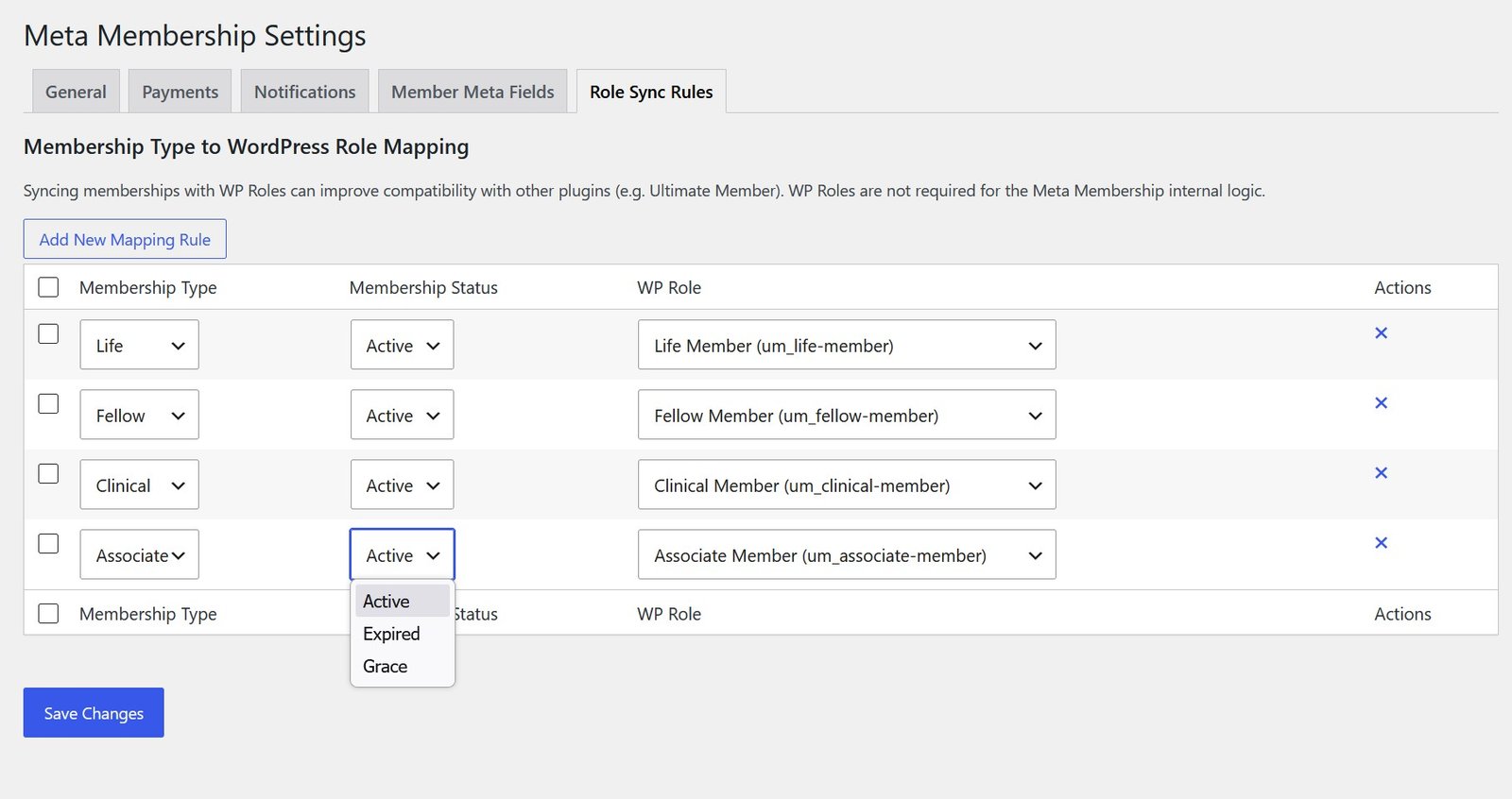
The roles in a typical setup are ones Ultimate Member created (shown by the um_ prefix, e.g. um_associate-member). The pattern is:
- In Ultimate Member, create a role for each membership tier you want to expose — for example a Life Member role, an Associate Member role, and so on.
- Back here, add a rule mapping each membership type’s Active status to its corresponding UM role.
- Optionally, map Expired and Grace to whatever roles suit — for instance, dropping an expired member to a basic role so UM stops treating them as a current member.
This lets Ultimate Member handle the member directory and profile display, while Meta Membership remains the source of truth for membership status. It’s why the dashboard’s Profile Tab can be switched off — UM is providing the profile, and role sync keeps it pointed at the right members. See [General Settings].