Membership Types List
Overview
Going to Memberships > Membership Types shows a list of every membership type you’ve defined. This is your jumping-off point: click a type’s Title to edit it, or Add New to create one.
Reading the list
The list summarises each type at a glance:
- Title — the type’s name. Click it to open the edit screen.
- Fee — the registration fee, with the renewal fee shown in brackets after it where the two differ (e.g. $110.00 ($100.00) means $110 to register, $100 to renew). Types with no charge show Free.
- Approval — how a submitted registration is handled: Auto (activates without an approval step) or Admin (held in Pending until an administrator approves). Admin-only types show Auto.
- Renewable — checked if memberships of this type can be renewed; unchecked if not.
- Renewal Mode — how expiry is calculated: Never Expires, or Fixed expiry with the date shown (e.g. Fixed expiry (1 July)).
- Registration Form — depends on whether the type allows self-registration. For types that allow self-registration, this shows the registration shortcode for that specific type (e.g.
[mime_registration type="guest"]). Click the shortcode to copy it, then paste it into the page where you want that type’s sign-up form to appear.
Row Actions
Hovering over a row reveals its actions:
- Edit — opens the edit screen (the same as clicking the title).
- Archive — retires the membership type. It’s no longer offered to new registrants, but existing members aren’t disrupted.
Archiving is the way to phase out a membership tier without affecting the people currently in it. If the type still has active members, Meta Membership shows a confirmation first, spelling out the impact — those members will:
- remain active until they expire,
- be unable to renew into this type, and
- continue to receive notifications assigned to this type.
In other words, current members run out their term normally; the type simply stops being available going forward. Archiving a type that no active members hold is applied without this confirmation, as there’s nothing to affect.
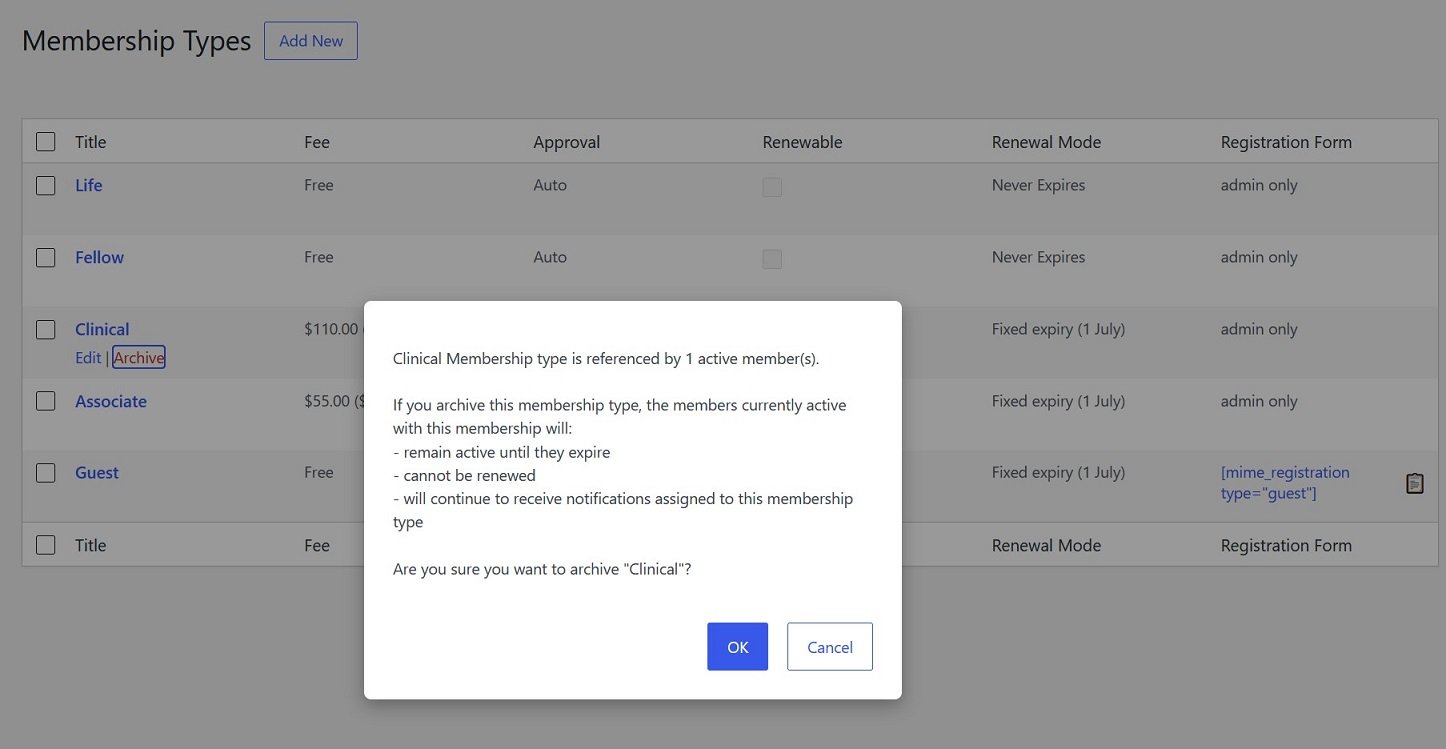
👉 Archiving is one-directional — there’s no unarchive action, so treat it as retiring a type for good rather than a temporary toggle.
Creating and editing types
Click Add New at the top of the page to create a type, or a type’s Title (or Edit) to change an existing one. Either route opens the edit screen, which has two tabs:
- [General] — name, fees, renewal rules, registration and payment options.
- [Meta Fields] — the fields shown on this type’s profile and registration forms.