How Meta Membership Works
Overview
Meta Membership is built around the membership lifecycle rather than around transactions. Before you configure anything, it helps to understand the model underneath: the states a membership passes through, the journey a member takes, and how access to your content is controlled. This page explains those three things. Once they make sense, every settings page in this documentation will read as a detail of a system you already understand.
If you just want to get a site running, see [Fresh Install]. If you are migrating from another plugin, see [Install with Member Import]. This page is the why behind both.
The membership lifecycle
Every membership record moves through a predictable set of states. A visitor registers, their record sits as Pending until payment or admin approval clears it, and it becomes Active. When the membership reaches its expiry date it enters a Grace period — expired, but with access retained for a configurable number of days — giving the member time to renew. If they don’t, the record becomes fully Expired and access is withdrawn.
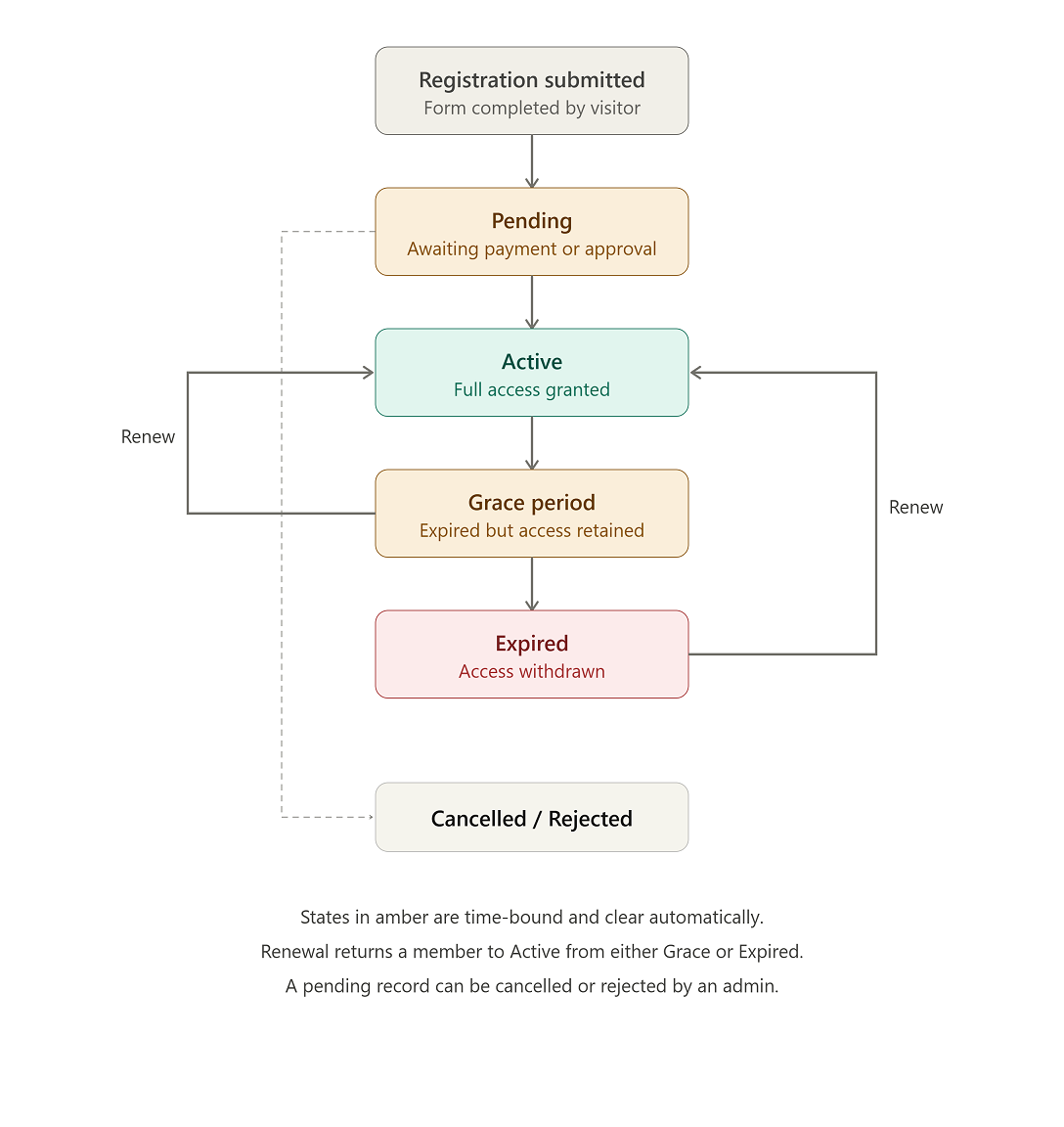
Two things are worth noting. First, the amber states — Pending and Grace — are time-bound and resolve automatically; you don’t manage them by hand. Second, renewal returns a member to Active from either Grace or Expired, so a lapsed member is never stuck. A Pending record can also be cancelled or rejected by an admin before it ever becomes active.
The member journey
The lifecycle above is the system’s view. From the member’s side, the experience is a straightforward sequence: they register through a form, pay, get a WordPress account (created fresh, or linked to an existing one if their email already matches a user), and land on their dashboard. As expiry approaches they receive reminders, renew, and the cycle repeats.
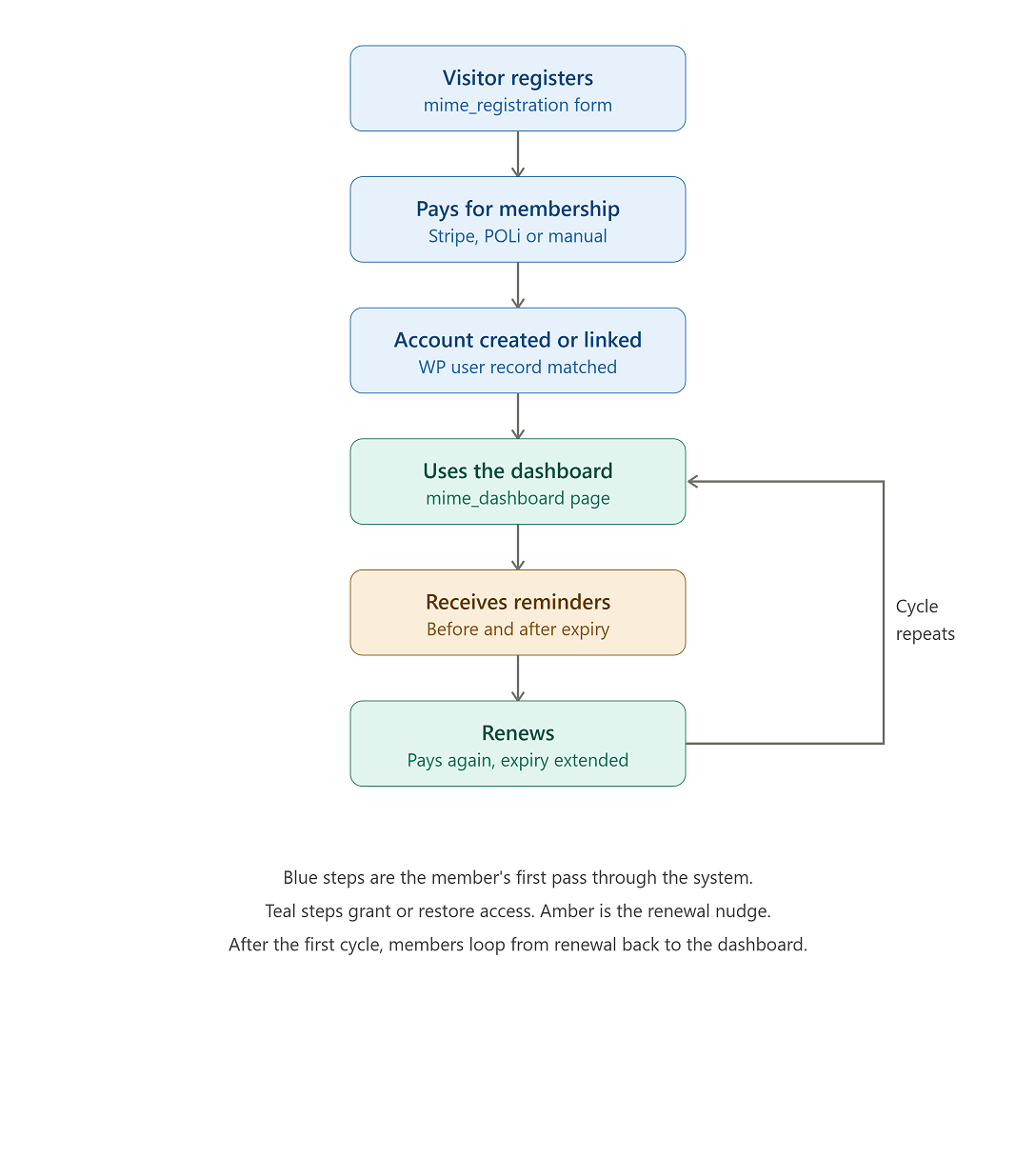
The key design point is that Meta Membership works with WordPress, not around it. If a registering email already belongs to a WordPress user, that account is preserved and linked — members keep their existing login. New accounts are only created for genuinely new emails.
Membership types and fees
A membership type is the template that defines what a membership costs and how it behaves. You can have as many as you need — for example Individual, Family, and Student — and each sets its own fees independently.
Each type has a registration fee and a renewal fee, and the two can differ:
- If the registration fee is 0, the membership is free — no payment is taken at sign-up.
- If the renewal fee is 0, renewals are charged at the same amount as registration.
This lets you set a renewal fee that is lower than the registration fee — a common way to reward members for renewing before they lapse, rather than letting their membership expire and re-registering. Full configuration is covered in [Membership Types].
How access control works
Meta Membership controls access to content independently of WordPress roles.
There is no single “access control” settings page. Instead, access is applied where the content lives:
- On individual posts and pages, via a meta-box in the editor that lets you restrict content by membership — for example to active members only, or to specific membership types.
- On menu items, via visibility controls that show or hide navigation links depending on a visitor’s membership type and status.
Because this control sits on the content rather than in a central settings screen, it’s easy to miss when you’re working through the admin pages — but it’s the mechanism that actually gates your members-only content. It’s covered in full in [Controlling Access to Content].
For sites that also use plugins relying on WordPress roles — such as membership-aware themes or directory plugins (such as Ultimate Member) — Role Sync Rules can map membership types and statuses onto WP roles, keeping the two systems aligned. This is optional and not required for Meta Membership’s own access control. See [Role Sync Rules].
Where to go next
With the lifecycle, the member journey, and the access model in mind, the rest of the documentation falls into place:
- To set up a site from scratch: [Fresh Install]
- To configure system-wide defaults: [General Settings]
- To define what a membership costs: [Membership Types]
- To restrict content to members: [Controlling Access to Content]